Place the loads on the floorplan, draw the routes, hit Calculate

Cables autorouted, trays and ladders sized in seconds

  • Import the cable schedule from Excel or ElectricalOM
  • Every tray and ladder run sized with spare capacity, weight and support checks
  • Export an Excel workbook and a marked-up PDF of each floor
Join the waiting list

FillSizer is finishing its checks before it opens to new users. Join the waiting list and we will email you when you can start a trial project.

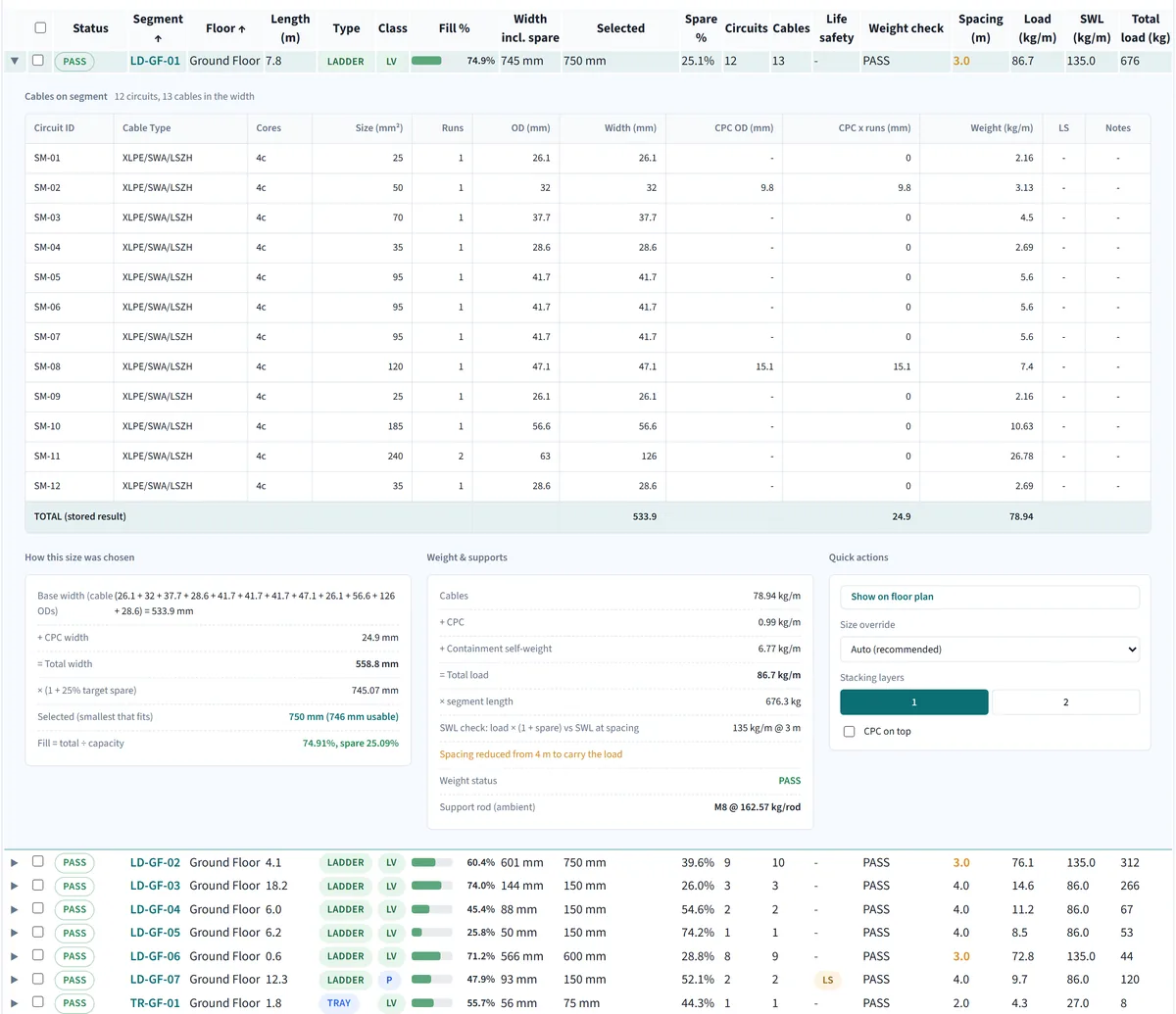
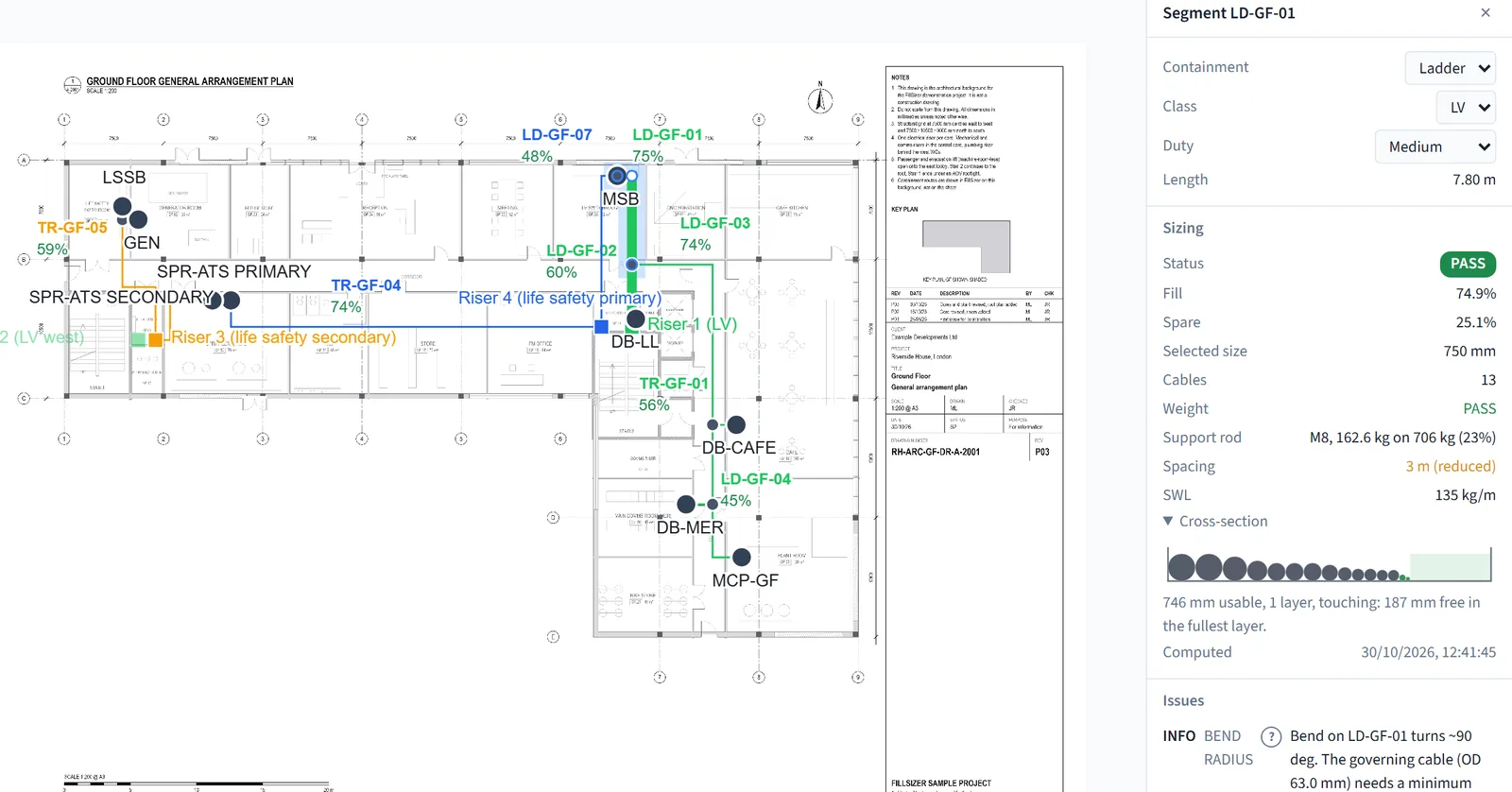
FillSizer drawing view of the demo project: ladder run LD-GF-01 from the main switchboard selected, with its fill, spare capacity, selected size, support rod, reduced support spacing and cable cross-section in the side panel
Demo project. Click a run to see its fill, spare capacity, size and support check.

Revision C arrived?

Re-size the whole project in seconds

Your routes and boards stay on the drawing. Only the cables change.

  1. Import the new revision

    Use the column mapping you saved the first time.

  2. Check what changed

    New, changed and removed circuits are listed before you confirm.

  3. Re-route and calculate

    One button. Changed circuits are routed again and every run is resized.

A change report lists each run that got bigger, got smaller or now fails. It also goes into the Excel export. A wrong revision can be undone.

How it works

Six steps from floor plan and cable schedule to marked-up drawing.

  1. Step 1

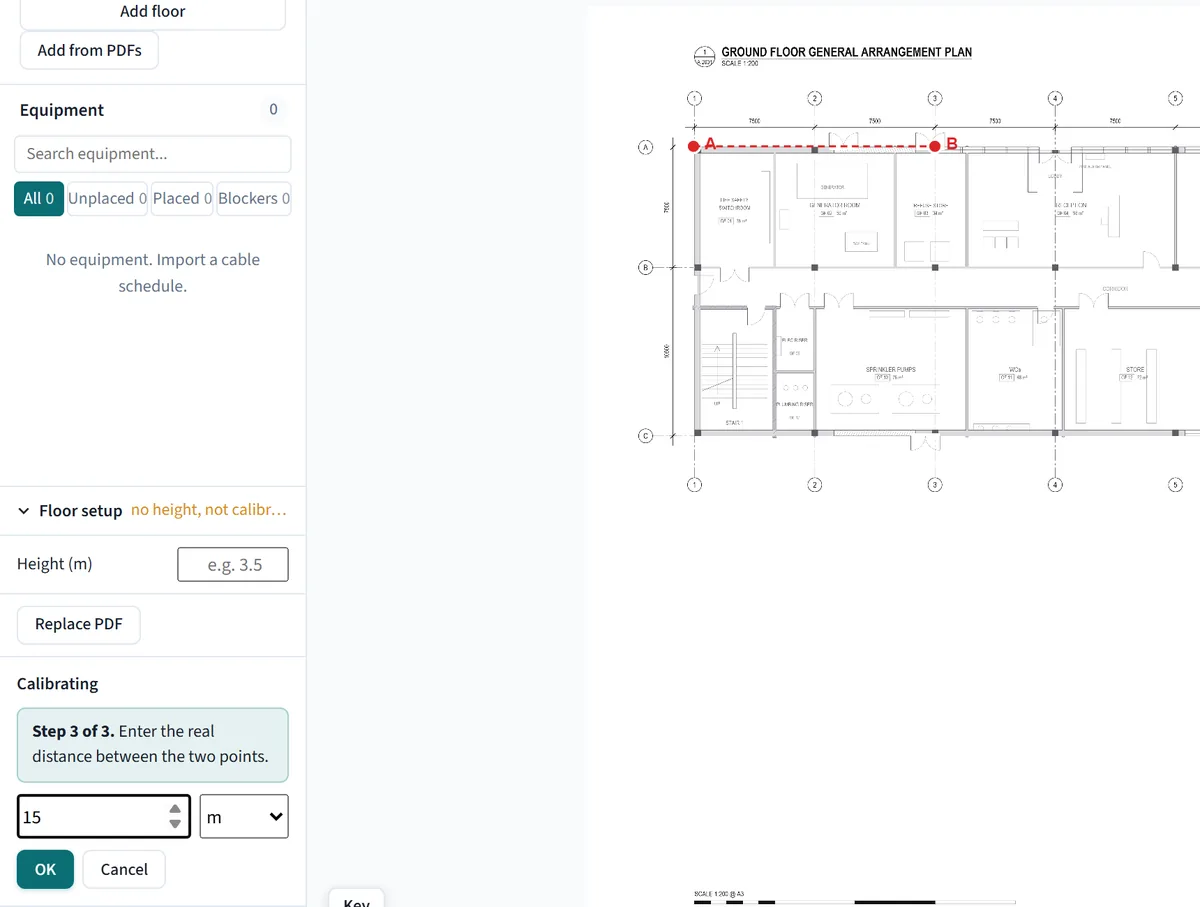
    Upload the floor plans and set the scale

    • A PDF floor plan for each floor
    • Click two points a known distance apart and type the distance
    • Enter the storey height so risers get their length
    Ground floor plan of the demo project with points A and B on grid lines 1 and 3 and 15 m typed as the real distance between them
  2. Step 2

    Import the cable schedule

    • Excel, comma-separated text or an ElectricalOM cable schedule report
    • Match the columns once and save the mapping
    • Every circuit keeps its source file, sheet and row
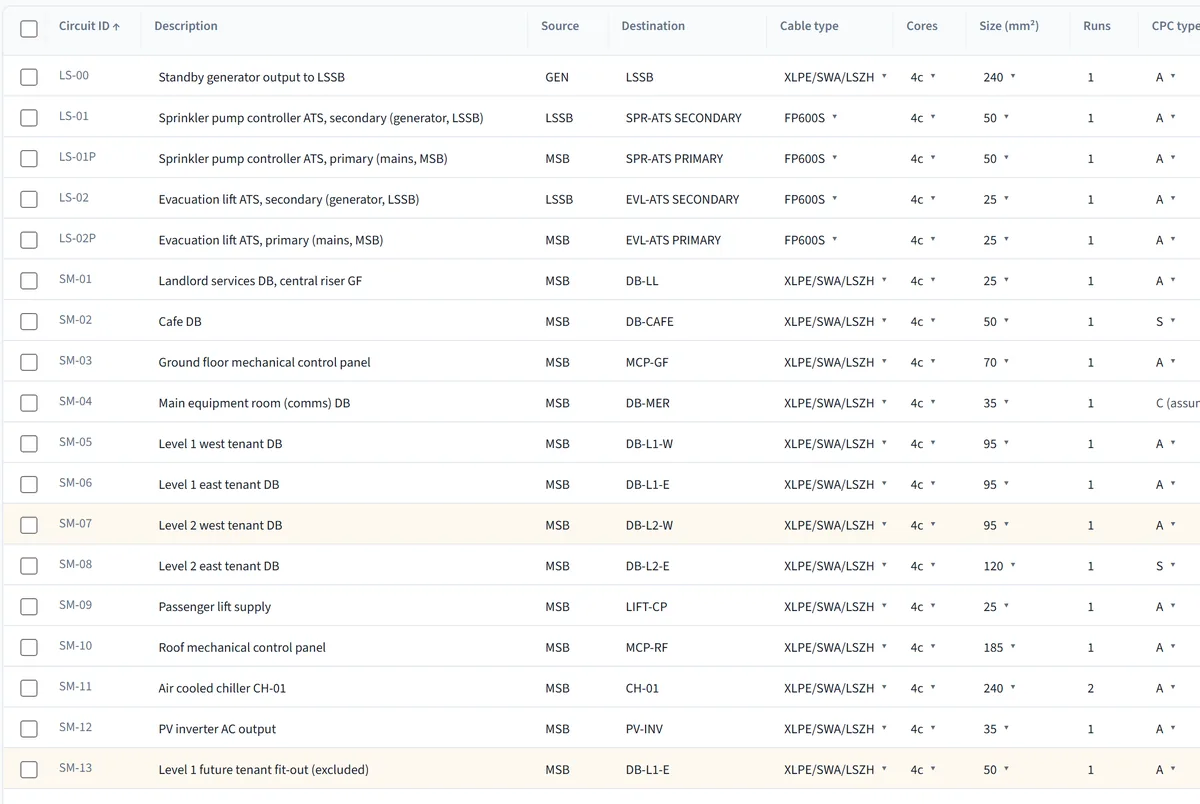
    Cable schedule of the demo project with circuit, source, destination, cable type, cores and size columns
  3. Step 3

    Drag the equipment onto the drawing

    • The list of boards comes straight from the schedule
    • Drag each board to its place on the floor plan
    • Boards not yet placed stay marked in the list
  4. Step 4

    Draw the tray and ladder routes

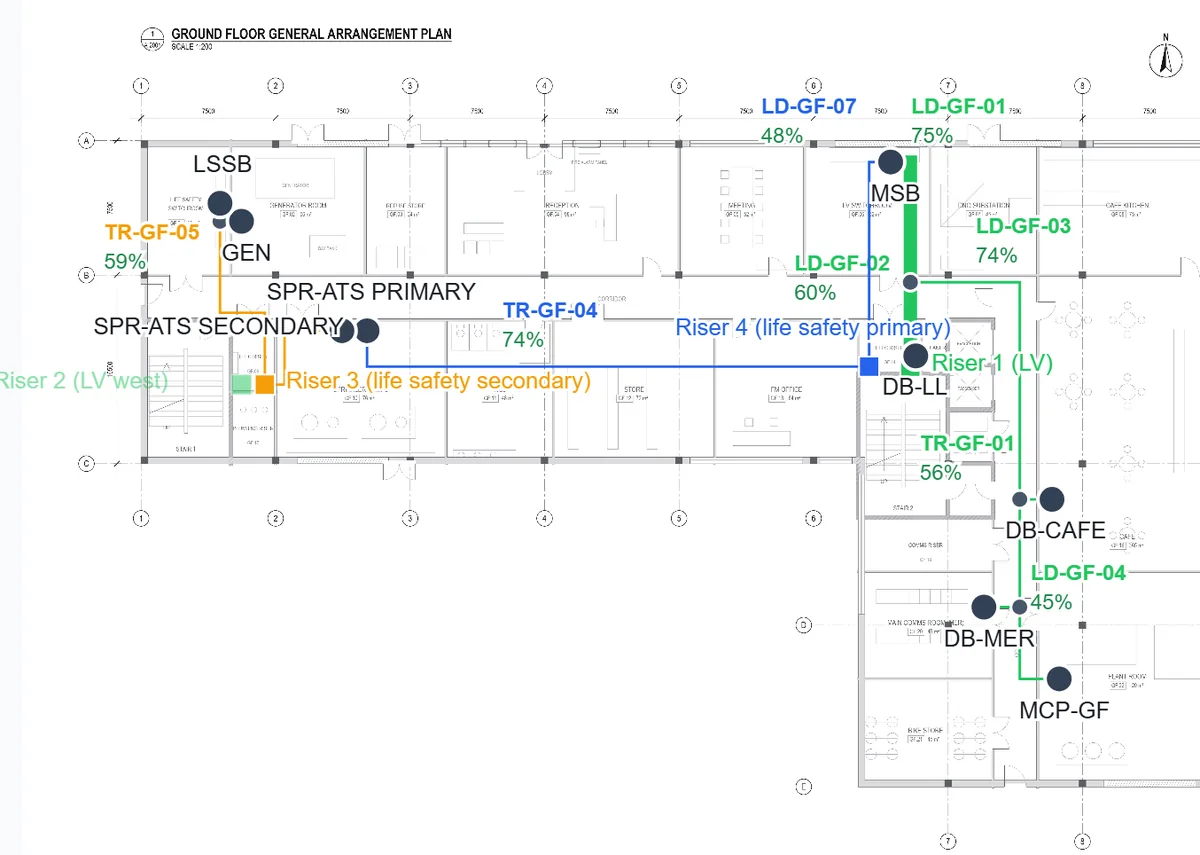
    • Draw tray and ladder over the PDF floor plan
    • Runs of the same class join where they meet. Risers link the floors.
    Ground floor plan of the demo project with tray and ladder routes drawn over it and the fill percentage of each run
  5. Step 5

    Route and calculate

    • Supported circuits take the shortest path on their own class of route
    • Each run is sized to your spare capacity target
    • Weight, support spacing and drop rod checks where manufacturer data exists
    • Open a run to see every cable on it
    Sizing results of the demo project with ladder run 01 opened to show its twelve circuits and their widths
  6. Step 6

    Export the record

    • One Excel workbook for the whole project
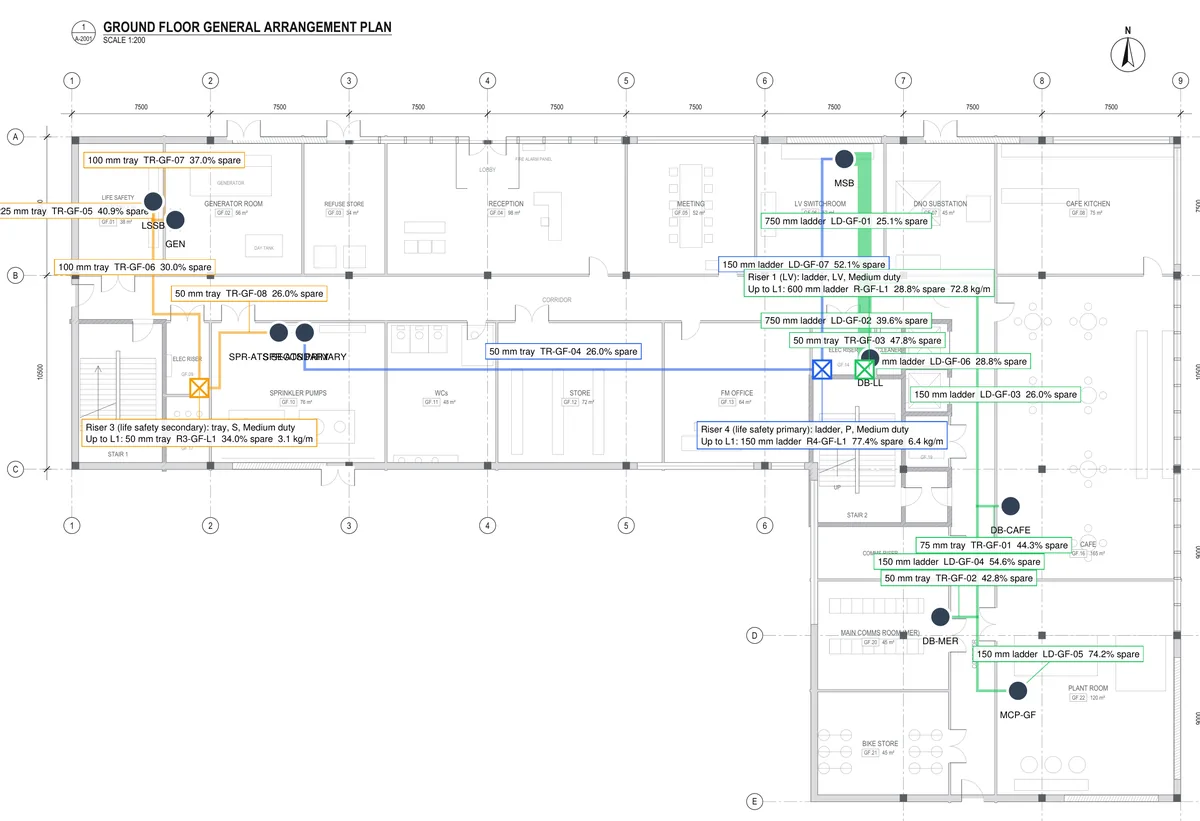
    • A marked-up PDF of each floor with size and spare capacity on every run
    • An issues list that names the cable behind each problem
    Marked-up PDF of the demo ground floor with a label on every run giving its spare capacity and selected size

Today FillSizer sizes submain power cables on cable tray and ladder. Cable basket, trunking and final circuits are on the roadmap.

Built by an electrical engineer with 15 years in building-services design. Automated tests check that calculation results stay consistent after software changes.

From cable schedule to marked-up drawing in one project

A tick means it is built in, with no custom formulas or links.

Features built into an Excel and PDF workflow compared with FillSizer
FeatureExcel workflow + PDF markupsFillSizer automated, auditable workflow
One connected schedule-to-drawing workflowSchedule, drawing, routes, results and exports in one project.
Place equipment and route supported circuits automaticallyBoards come from the schedule. Supported circuits find their own route.
Click a circuit to see its complete routeSelect a circuit to light up every run it uses. Select a run to list its cables.
Marked-up PDF for every floorWidth, spare capacity and result on every run.
One Excel file for the whole projectSizing, spare capacity, materials list, issues and the source row of each circuit.
Three cable-spacing methodsWidth of the cable fixing, touching diameters or a gap of twice the cable diameter.
Cable weight and support assessmentFinds the widest support spacing within the manufacturer's safe-working-load data. Says so when a check cannot be completed.
Routing for standby and life-safety circuitsFinds circuits fed by a generator or uninterruptible power supply. Life-safety circuits route only on life-safety runs.
Revised cable schedules in secondsSaved column mapping, a list of changes before you confirm, one button to re-route and calculate.
Familiar tools that work offlineExcel and PDF markup work offline and suit small one-off jobs.

Both workflows can produce Excel and PDF files. FillSizer keeps the schedule, routes and calculations linked from import to export.

Automatic routing works only for supported circuits and uses the tray or ladder network already drawn. All engineering checks are advisory checks, not compliance verification. Route lengths are estimates based on the PDF scale.

Try the tray fill check

Pick a tray width and one or two layers, then add cables. Fill and spare capacity change as you go.

Interactive cable tray demo0 cables
Tray width (millimetres)
Cable layers
Add a cable
 
300 mm
0%Tray fill
100%Spare capacity (target 25%)
0 / 300 mmTotal cable width used
Fits

This example uses sample cable sizes and a 25% spare-capacity target. FillSizer can size from cable outside diameter or the width of each cable fixing (cleat), using the data saved in your project.

Prices when we open

Try one real project first, with every feature. Trial exports carry a TRIAL mark. No card needed.

Project licence

One project

£249first year

then £99 for each year after

  • One cable schedule on one site, all floors
  • Changes to the drawings and cable schedule for 12 months
  • Anyone in your firm can work on it, each with their own sign-in
  • Pay the £99 only in the years you still make changes

Firm licence

For 4 or more projects a year

£990per year
  • 10 new projects a year for your whole team
  • Each extra project £99, shown before you add it
  • Anyone in your firm, each with their own sign-in
  • Older projects stay editable at no extra cost

Prices in GBP.

Questions before you start

Do I need Revit or a building information model?

No. Upload a floor-plan PDF, set its scale with a known distance and draw the routes over it.

What can I import?

Excel workbooks and comma-separated text files, including ElectricalOM cable-schedule reports. Match the columns during import. Each circuit keeps its source file, sheet and row.

Does FillSizer check compliance with standards?

No. FillSizer calculates from your inputs using established engineering practice and manufacturer datasheet values. Its results are advisory checks, not compliance verification. You stay responsible for the final design. It must include everything the project needs. Cables missing from the imported schedule and containment that does not fit on site are not FillSizer's responsibility.

What does it size today?

FillSizer currently sizes steel-wire-armoured submain cables with cross-linked polyethylene insulation and conductor sizes from 25 to 400 square millimetres, on cable tray and ladder. Sizing for cable basket, trunking and final-circuit cables is on the roadmap.

How do I check the numbers?

Open a sized run to see each cable, its width, the spare-capacity target, the selected tray or ladder size and the weight check.

Is my project data confidential?

Yes. Projects are private to your firm's account. The app and its database run on DigitalOcean servers in London. Uploaded drawings and schedules are stored in Cloudflare R2. Sign-in is handled by Clerk. Payments will go through Stripe, which holds card details so we never see them. Data is encrypted in transit and at rest. These are widely used providers: Stripe also takes payments for Amazon and Xero. BAFTA is a Cloudflare customer. You can export your data or ask for deletion from account settings. The Privacy Policy lists every provider and how long data is kept.

What do I need to run it?

A modern web browser. There is nothing to install.

What counts as one project?

One cable schedule and its revisions for one site, all floors. Several schedules are several projects.

What happens when a licence ends?

Your projects stay readable and exportable for as long as we run FillSizer. If we ever close it, we give at least 90 days' notice to export.
Try FillSizer on one project

When we open, you can run one real project with every feature before you buy. Exports carry a TRIAL mark until you buy a licence.

  • All sizing features
  • One real project
  • No card needed
Join the waiting list

Sign in to your account

For people who already have a FillSizer account.

Sign in

Sign-in is not available in this preview. Continue to FillSizer to sign in.

Help decide what we build next

Vote for the features that would save you the most time. No account needed and you can change your vote later.

Already built: compare cable schedule revisions, cable bend checks.

Missing something? Email your idea